Board and Backlog
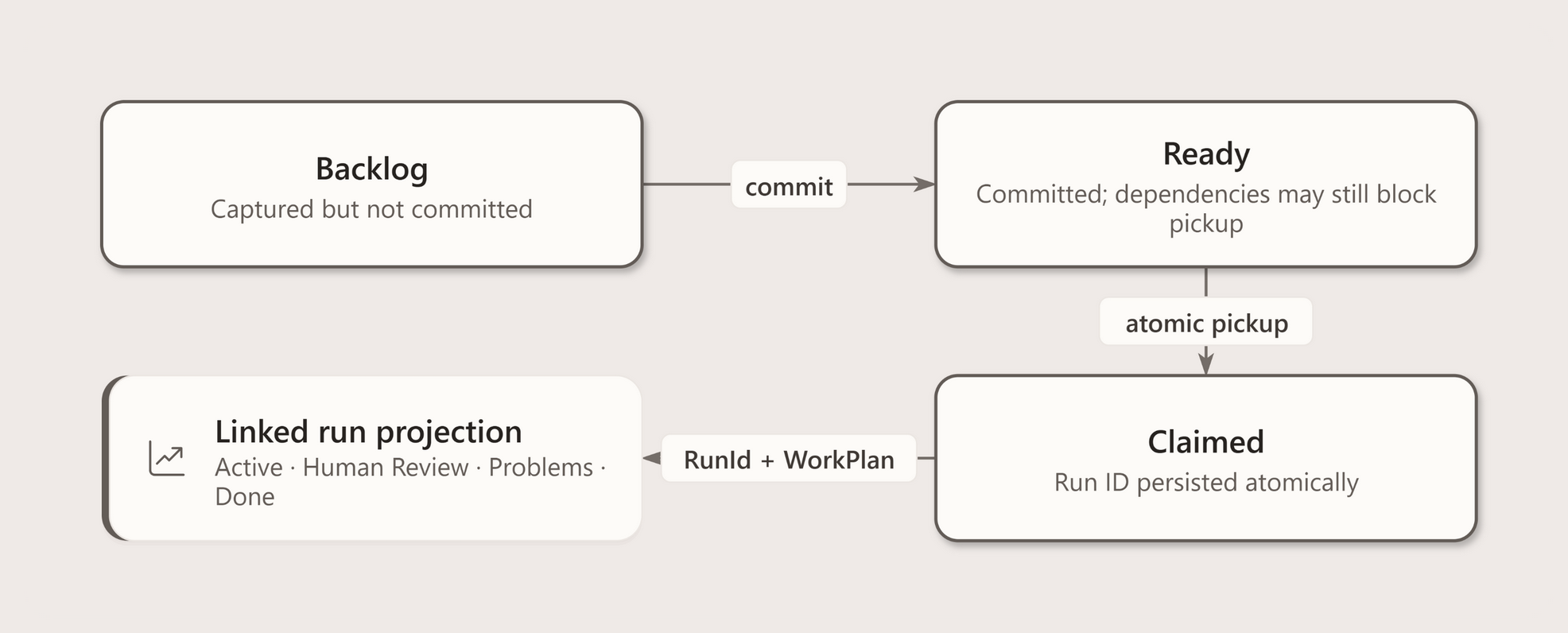
Every Agentweaver project has a Kanban board with six semantic buckets. The main row shows Backlog, Ready, Active, and Done; a separate attention section shows Human Review and Problems. Use it to capture tasks, rank your backlog, and monitor the coordinator and agents.
The six columns
| Column | Who controls it | What belongs here |
|---|---|---|
| Backlog | You | Tasks captured but not yet ready to run |
| Ready | You | Tasks ranked and ready for the coordinator to pick up |
| Problems | Coordinator | Runs that failed, with the failure reason surfaced |
| Human Review | Coordinator | Runs awaiting your approval |
| Active | Coordinator | Coordinator runs currently in progress |
| Done | Coordinator | Completed, merged runs |
You own Backlog and Ready
You can only drag tasks between Backlog and Ready. The coordinator owns every other column transition. Dragging a task back from Ready to Backlog pulls it out of the queue before the heartbeat picks it up.
Moving one task or the entire backlog to Ready requires a signed-in Microsoft Entra user with a Contributor project role and an available model provider. Ready records the accepting user's identity and the selected provider separately from the original capturer; accepting a teammate's task does not change who captured it or who is accountable for its confirmation. Internal service credentials cannot accept tasks on a user's behalf. Moving a task back to Backlog clears its accepted provider and Ready identity; moving it to Ready again accepts the current provider and user. An empty bulk move changes nothing. REST callers use POST /api/projects/{projectId}/backlog/tasks/{taskId}/ready or POST /api/projects/{projectId}/backlog/ready-all; the latter returns { "moved": number }. The MCP Ready tools delegate to these same routes. Both reject callers without a human Entra subject with 403 human_entra_subject_required, and unavailable model providers with 409 model_provider_connection_required. The accepted key and user subject are not part of the task response.
Capturing tasks
The Backlog column has a capture bar at the top. Type a short task title and press Enter or click Add.
To add more detail after creating a task, hover the card and click the Edit icon. The edit form has both a Title and Description field — use the description to give the coordinator full context: the goal, expected outcome, and any constraints.
Good descriptions lead to sharper OutcomeSpecs. You can also set a workflow override per task card by clicking the workflow menu on the card — this pins that task to a specific workflow instead of letting the coordinator auto-select one.
Import from Markdown
From the Workspace page, you can browse the project repository and import Markdown files directly as backlog tasks — useful for turning spec files, PRDs, or issue descriptions into queued work.
Ranking the backlog
Drag tasks within the Backlog column to rank them. The coordinator picks up Ready tasks in order, so ranking determines priority. Move your highest-priority tasks to the top of the Backlog, then drag them to Ready when you're ready for the coordinator to act on them.
Linking separate story runs
Use Links on a Backlog or Ready card to set prerequisite task IDs. Preview first to see which downstream cards may be affected; then save. The edit uses the board's project graph revision: if someone else changed links meanwhile, refresh and preview again. Only links from unclaimed, unarchived tasks can be edited. A claimed run keeps the prerequisite graph revision, producer run/lifecycle-generation identities, the immutable collective output revision ID (when available), and merged commit/tree hashes it accepted at claim time; editing another task never rewrites those consumed inputs. Archived prerequisite tasks retain their links and run identity, but block new claims.
Ready cards with unmet prerequisites stay in Ready and are skipped before the pickup limit is applied. Their card lists each upstream outcome: integrated, accepted no change, pending, failed, cancelled, delegated, or archived. An integrated run must also have a recorded merged commit and tree: otherwise the dependent remains Ready with the upstream_output_identity_unavailable blocker, rather than claiming an unidentified output. Successful collective assembly records both identities atomically with its terminal outcome before settling the work plan. Delegation is not execution. A completed coordinator run satisfies dependents only after integration; an explicitly accepted no-change completion remains blocked until its immutable receipt is available. A failed run must recover successfully first. Ready cards without blockers can still wait for a capacity slot. Human Review and Problems are run gates, not prerequisite wait states.
Make each independently deliverable story a separate backlog task/run and link them when one consumes another's accepted output. Keep tightly coupled steps that must share one review/assembly boundary as subtasks inside a single coordinator run; do not model every implementation step as a separate story. The per-project editor does not create cross-project links.
The claim records the accepted producer generation, commit/tree and collective output revision ID in the existing run revision store. A completed collective assembly lacking an immutable revision stays blocked with upstream_output_revision_unavailable; a missing commit/tree stays blocked with upstream_output_identity_unavailable. Retrying or archiving a producer does not rewrite a dependent's claimed snapshot. The revision retains the assembly diff and exact committed tree/file bytes in the run database, independent of the Git branch and worktree. REST /api/runs/{runId}/output-revisions lists history; the exact revision route returns its file inventory; /files/{path} returns exact base64 bytes, and /compare/{otherRevisionId} compares retained file identities. MCP exposes the same history, revision, file and compare routes as run_output_history, run_output_revision, run_output_file and run_output_compare. Missing/corrupt content returns an explicit unavailable error; older diff-only revisions have no retained files and cannot be resolved as exact inputs.
At pickup, Agentweaver resolves the claimed revisions, composes their retained files in the recorded prerequisite order, and materializes a deterministic execution commit against one pinned project commit. Non-overlapping outputs compose; divergent edits to the same path, missing lineage, unsupported manifests, and missing or corrupt content fail closed with a typed prerequisite error. The run persists the source commit, materialized commit, and composite digest before launch or recovery. Its worktree starts from that exact commit while originating_branch remains the separate publication target, so later branch movement cannot change the consumed input.
Collective review is bound to an immutable candidate published before the review request; approval of a replaced candidate is stale. New accepted no-change completions retain a tree and receipt and can satisfy a prerequisite; historical completions without a receipt stay blocked with upstream_output_revision_unavailable. A confirmed result cannot borrow an ordinary collective revision as a no-change receipt.
For REST callers, read graph_revision on a task or GET /api/projects/{projectId}/backlog/dependencies/revision, then POST /api/projects/{projectId}/backlog/tasks/{taskId}/dependencies?preview=true with expected_revision and add, remove, or replace task-ID arrays. Repeat without preview to save. Responses include the resulting revision, prerequisites, and affected task IDs. The MCP tools backlog_get_dependency_revision and backlog_edit_dependencies use the same contract.
The heartbeat
A heartbeat runs automatically on a configurable schedule. Each time it fires, it:
- Looks at the Ready column for tasks the coordinator hasn't claimed yet
- Claims tasks up to the concurrency limit (default 3, maximum 20)
- Starts a coordinator orchestration run for each claimed task
- Moves the task card to the Active column
You can view and configure the heartbeat from the Heartbeat page in the project sidebar. You can also trigger a heartbeat manually.
Pickup settings
Each project has three pickup-level settings, visible in the Pickup settings dialog on the board toolbar:
| Setting | What it controls |
|---|---|
| Max Ready items per heartbeat | How many Ready tasks the coordinator claims per tick (1–20, default 3) |
| Autopilot | For automatically picked-up runs: auto-answers the coordinator's clarifying questions using the coordinator model, and auto-confirms the outcome spec so the run proceeds without waiting for manual confirmation. Tool and permission approvals are still required, every auto-answer is logged in the timeline, and the setting is persisted in the run event log so any API replica can honor it. Defaults to on. |
| Auto-approve tools | Automatically approves eligible safe tools for picked-up runs; it does not override sandbox blocks or every permission gate. The setting is persisted per run so a resumed worker or another API replica sees the same value. |
When Autopilot is off, a pickup run pauses at outcome-spec confirmation. When it is on, the spec is confirmed on behalf of the accountable human captured on the backlog item. Pickup settings are not manual-launch defaults: explicit per-run autopilot can auto-confirm a define-outcome submission, while direct mode skips outcome drafting. Tool approval and collective human review remain separate gates.
Concurrency limit
The heartbeat will not start more than the configured maximum of concurrent active runs. Tasks stay in Ready until a slot opens. Increase the limit in Heartbeat settings if your team handles higher throughput.
Handling problems
When a run fails mid-execution, its task card moves to the Problems column. The card shows:
- The failure reason (coordinator status reason)
- Which subtask or agent failed
- A link to the full run detail for the complete event trace
From Problems, you can:
- Open the run to read the full trace and understand what went wrong
- Use the run's explicit retry or recovery controls after inspecting the failure
- Capture revised work separately when a new task is needed; Problems cards cannot be dragged to Ready
For an older Ready task without a recorded provider acceptance, capture a replacement task or move the unclaimed task back to Backlog and then to Ready again. The failed run itself stays in Problems; it is not automatically requeued.
Human Review column
When all agents finish and the assembled result is ready for your approval, the task card moves to Human Review. This is your signal to review.
Click the card to open the run and see the diff. After you approve or decline, the card moves to Done (approved) or back to the coordinator for revision (requested changes) or to Done as declined.
Decomposing a spec into tasks
If you have a specification file (a PRD, a design doc, a feature spec), the coordinator can read it and decompose it into individual backlog tasks automatically.
From the Workspace page, browse to the spec file and click Decompose into tasks. First review the proposed tasks and duplicate indicators. Only explicit confirmation (confirm: true for API/MCP) persists new tasks in Backlog. Then edit and rank the saved tasks before moving them to Ready.
Model provider
Spec decomposition requires a ready model provider. If setup is required, select Authorize GitHub Copilot. Then start the decomposition again.
Monitoring active runs
The Active column shows every coordinator orchestration currently in progress. Each card shows:
- The task title
- The coordinator status (Dispatching, Awaiting assembly, Assembling, In review)
- A Topology button to open the live run graph
Click Topology to watch the orchestration in real time — the dependency graph, each agent's progress, and the live event stream.
→ Submitting and Watching Runs
Board for different personas
Software Engineers use the board to submit tasks, track active work, and pick up Human Review items.
Tech Leads use it to manage the queue — ranking the backlog, adjusting the concurrency limit, and monitoring the Problems column for anything that needs attention.
Product Managers use it to capture pm-discovery tasks, track what's in flight, and review the Done column to see completed outcomes.
Diagram details and constraints
| Element | Contract |
|---|---|
| title | The board is a projection |
| subtitle | Columns reflect persisted task and run state—not a separate workflow engine. |
| group-title0 | Before and during execution |
| group-title1 | Review / terminal outcomes |
| Backlog | Backlog |
| Backlog | Captured task; not queued |
| Backlog | task: backlog |
| Ready | Ready |
| Ready | Queued task |
| Ready | task: ready |
| Active | Active |
| Active | Work is in progress |
| Active | default non-review bucket |
| Problems | Problems |
| Problems | Failed / declined / merge failed |
| Problems | or assembly blocked / failed |
| Human Review | Human Review |
| Human Review | AwaitingReview / InReview |
| Human Review | or assembly stage: Review |
| Done | Done |
| Done | Completed / Merged / AssembleReady |
| Done | or plan Complete / stage Done |
| e1 | queue |
| e2 | claim + start |
| e3 | await review |
| e4 | finish |
| e5 | problem |
| assurance-title | DEFAULT BUCKETS · NOT A NEW STATE MACHINE |
| assurance-line1 | Configured workflow stages may replace the default run columns. Arrows summarize typical changes, not every path. |
| assurance-line2 | The board polls persisted state. Ready tasks with unmet dependencies stay Ready; blocked is a flag. |
| Backlog | Entity |
| Backlog | BacklogTask |
| Backlog | State |
| Backlog | Run |
| Backlog | Not required |
| Backlog | Action |
| Backlog | Move to Ready |
| Ready | Blocked |
| Ready | Dependency metadata |
| Ready | Pickup |
| Ready | Atomic claim |
| Active | Input |
| Active | Coordinator run |
| Active | Status |
| Active | Non-review default |
| Active | Plan |
| Active | Dispatch / assembly |
| Active | Approval |
| Active | Separate pending flag |
| Problems | Failed / Declined |
| Problems | Merge |
| Problems | MergeFailed |
| Problems | Assembly |
| Problems | Blocked / Failed |
| Problems | Also |
| Problems | AssemblyDeclined |
| Human Review | AwaitingReview |
| Human Review | InReview |
| Human Review | Review stage |
| Human Review | Approve |
| Human Review | Resumes execution |
| Done | Completed / Merged |
| Done | AssembleReady |
| Done | Complete |
| Done | Done stage |
| backlog | No run is required yet; Move to Ready to queue work |
| ready | Unresolved dependencies stay here; Blocked is a flag, not a column |
| progress | Claimed tasks link to their run; Pending approval is a separate flag |
| failed | Blocked assembly is recoverable; Not every problem is terminal |
| review | Approval resumes the workflow; Approval alone is not Done |
| done | Persisted-state mapping; Not merely a clicked approval |
| notes | DEFAULT BUCKETS · NOT A NEW STATE MACHINE; Configured workflow stages may replace the default run columns. Arrows summarize typical changes, not every path.; The board polls persisted state. Ready tasks with unmet dependencies stay Ready; blocked is a flag. |
| groups | Before and during execution; Review and terminal outcomes |
Visual model
Board lifecycle