Submitting and Watching Runs
A Run is a unit of work that Agentweaver executes on your behalf. You describe what you want in plain language; the coordinator agent scopes it, confirms it with you, and then drives the team of agents to produce the result — all inside isolated sandboxes.
Starting a run
Model provider context
Supported AI actions show three provider states:
- Expected provider shows the provider selected before submission.
- Using shows the provider for active execution.
- Used shows the provider recorded for completed execution.
Every execution surface uses the same compact provider indicator. It stays on one line, truncates before it can displace primary controls, and wraps beside its action only when the surrounding layout is narrow. The visible indicator contains the phase and provider kind. Its tooltip and accessible description contain the full model and scope details. Multi-action groups show one visible indicator while each AI action retains the complete accessible provider description.
Screen readers announce changes, including replacement by another provider of the same kind. The UI and API do not expose credentials, account names, or provider-binding identities.
A pending readiness check says Checking AI provider readiness. A failed readiness request says that the check could not complete and offers Refresh provider; it does not claim that the provider itself is unavailable. Provider setup guidance appears only when the API returns effective_model_provider.state: "unavailable". If a completed run has no recorded provider event, the UI says Provider details not recorded or omits the provider footer instead of inferring which provider ran.
For failed runs, the header shows the provider recorded in the run once. The retry action keeps its newly prepared provider in its accessible label. A second visible Expected provider label appears only when it differs from the recorded run provider, so operators can review the change before retrying.
Agentweaver records an immutable provider and capability snapshot when a run starts. Provider enablement, disablement, or configuration changes apply to future runs only; they do not switch or cancel an in-flight run during assembly, revision, recovery, or replay. The UI continues to show the provider accepted for that run.
The platform still revalidates that the accepted provider credential remains usable immediately before each covered model call. A revoked or expired credential fails closed with 409 model_provider_changed before model invocation and includes a redacted replacement context. The UI shows the replacement as new Expected provider context.
The API binds an execution key to the caller, operation, project, and provider configuration. The key expires after five minutes. Missing or expired keys require new context.
Coordinator outcome drafting, tool-less classification, and Preview analysis use the effective model provider, including a configured BYOK provider. Queued work retains its accepted provider fingerprint and stops if the provider changes before pickup. For backlog work, a human Contributor accepts that provider when moving the task to Ready. The server stores a signed, non-expiring queued plan bound to the project, orchestration operation, accepting Entra subject, and provider configuration; the key is never included in task responses. Pickup revalidates it and freezes the chosen provider and model for the run. Copilot-selected work still requires its Copilot capability; selecting BYOK does not grant optional GitHub repository authority.
Older human Ready tasks with no signed acceptance fail before drafting with queued_model_provider_confirmation_required, even if a provider is now configured. To retry, capture a replacement task, or move an unclaimed Ready task back to Backlog and then Ready again. If the provider changed, reconnect or reconfigure it and re-Ready the unclaimed task; a malformed or mismatched signed plan fails closed with invalid_ai_execution_plan rather than choosing a different provider.
Custom API clients prepare context through POST /api/ai/execution-context. The request contains operation and the applicable project_id or run_id. The response contains phase: "prepared", execution_key, expires_at, and effective_model_provider. The provider object contains redacted kind, scope, type, model, availability, and comparison data.
Send execution_key in If-Model-Provider-Key for the corresponding action. Do not display or send the public provider_key as authority. It is an opaque comparison fingerprint, not an execution key. If preparation or a guarded invocation returns 409 model_provider_changed, stop the operation, use the replacement context, and prepare a new key. If the provider is unavailable, configure an eligible BYOK provider or the operation's required GitHub Copilot capability, then retry.
Coordinator orchestration
From inside a project, open the Board page and click Start task (or use the Start task button from the runs list or Flow page).
Enter your task as a natural-language goal in the Goal field:
"Refactor the authentication module to use JWT and add integration tests."
The action buttons use the concise Goal required indicator until the required Goal field contains text; their accessible description remains Enter a goal to continue. While provider preparation is still in progress, the compact indicator says Checking provider and its accessible description says Checking AI provider readiness. This is not a provider failure. Provider setup guidance appears only when the resolved provider is actually unavailable.
Click Start task. The coordinator orchestration begins and you're taken to the topology view.
Be specific about outcomes
Describe what success looks like, not just what to do. The coordinator uses your description to draft an OutcomeSpec — the more concrete your goal, the sharper the spec.
Workflow selection
When you click Start, the coordinator automatically selects the best-fit workflow for your goal using an LLM pass over your team's available workflows, their descriptions, and team roles. The selection and its rationale are shown in the coordinator conversation.
To override: open the Workflow dropdown in the Start task dialog and choose a specific workflow. The dropdown shows only workflows with a manual trigger; it is hidden when only one workflow is available. Leave it on Auto to let the coordinator choose.
You can also override mid-conversation by typing use {workflow-id} before confirming the OutcomeSpec.
Preview your work
Software delivery and bug-fix workflows include a collective build_test gate after RAI. The built-in agent prompt builds/tests; it does not ask the agent to provision a preview. After eligible Build & Test outcomes, the coordinator invokes a deterministic platform PreviewStep before applying the gate decision. Preview unavailability is reported separately and does not itself block human review.
GET /api/runs/{id} returns sandbox.current_binding alongside the existing historical sandbox.backend, claim_name, pod_name, and namespace. Only current_binding.state: "verified" attests the currently configured claim, Sandbox, Pod UID, lifecycle generation, assembly attempt, and source tree. unavailable means the proof is absent (including older claims with no post-configuration attestation); conflict means live identity differs from the attested binding. Check reason before trusting a preview. The executor backend can remain kata-exec-sidecar even when the provisioner is a Kubernetes SandboxClaim; a historical pod name is not evidence of the current preview pod. A child run can retain its own live preview after its execution ends; that child's claim and session are separate from the coordinator's claim and automatic preview. Never substitute a child binding for the coordinator's exact run and preview identity. Build/Test launch requires a durable post-configuration attestation; if the event cannot be recorded, the launch fails rather than reporting a successful unverified binding. The attested detached source worktree remains registered, clean, and unchanged through review. Removing, replacing, or modifying it makes the current binding unavailable or conflicting; recreating a checkout at the same path and commit does not restore the old proof.
For a custom workflow without that gate, ask the coordinator to have an agent build and start the app in its sandbox. The agent can call start_preview(port=PORT) and optionally include the observed session ID. If registration times out, check run_status and retry only after confirming that the sandbox is still running. On non-Kubernetes backends, it provides local run instructions instead.
If an API restart interrupts publication, retry with the same healthy preview session and port. A live publication attempt still returns a conflict; once its short renewable lease expires, a retry returns the already-published healthy route when its ready outcome was committed, or takes ownership without restarting the preview process otherwise. A superseded attempt cannot publish its ready events or release the retry's lease. A terminal run or unhealthy preview session remains an explicit error.
If startup recovery advances a run to a new lifecycle generation during Gateway publication, the earlier API attempt loses its lease at the next renewal (normally within a minute), aborts, and releases it without stopping the replacement process. Retry from the recovered run with its new healthy preview session and port; a conflict while the old attempt is winding down is temporary, not a reason to wait for the full Gateway-convergence timeout. Ready events are emitted only by the current generation.
The supervised preview process accepts either a worktree-relative working directory or the canonical absolute path of the worktree (or one of its subdirectories). Paths outside the run worktree, traversal escapes, and symlink or junction escapes remain blocked by the sandbox policy.
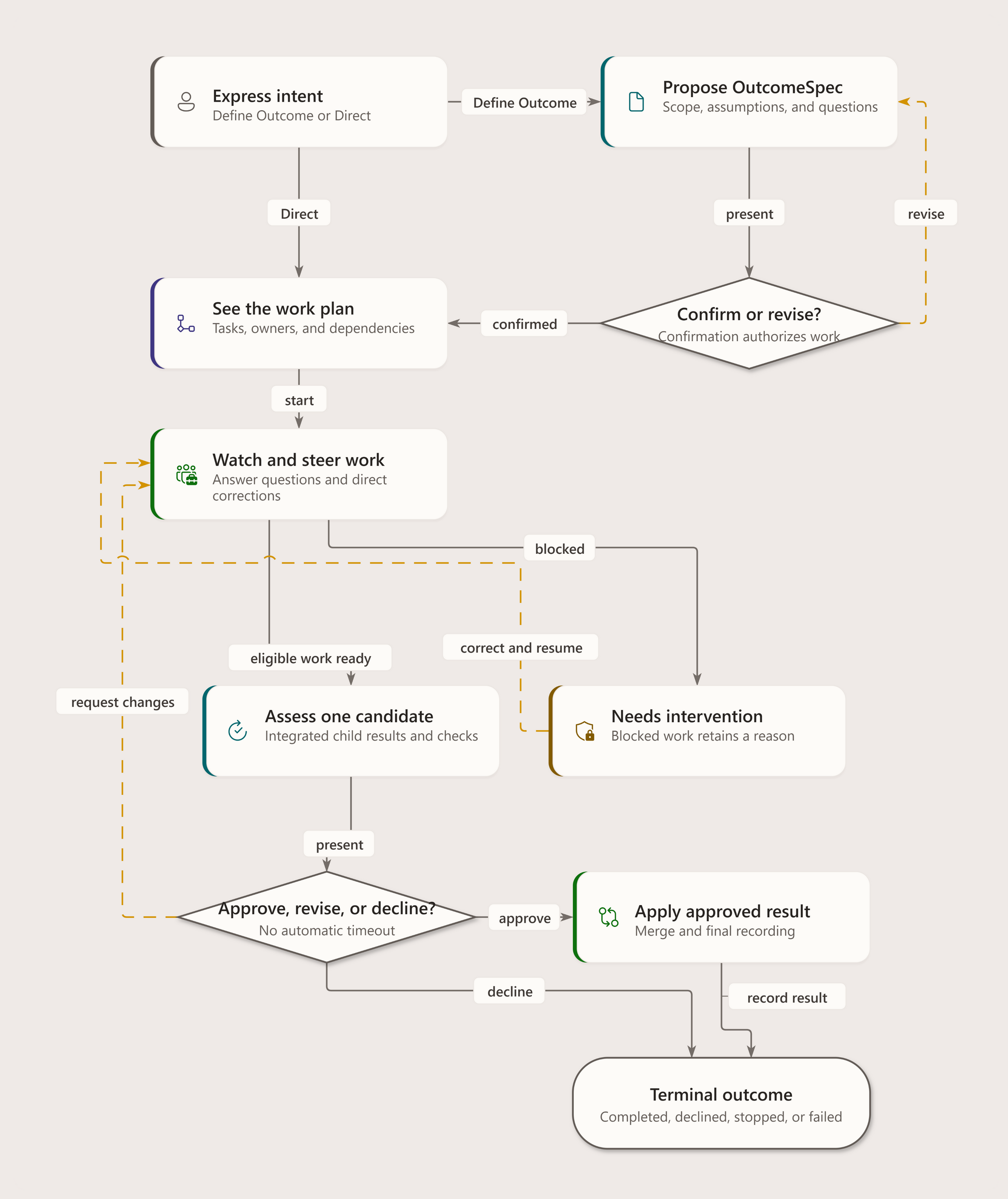
The OutcomeSpec confirmation
For define-outcome mode with autopilot off, the coordinator:
- Reads the team's existing memories and decisions
- Selects the best-fit workflow for your task
- Drafts an OutcomeSpec — a short, structured statement of:
- Goal — what you're asking for
- Desired outcome — what success looks like
- Scope — what is and isn't in scope
- Assumptions — what the coordinator is assuming
- Presents the spec for your review (and may ask targeted clarifying questions)
- Waits for your confirmation
You review the OutcomeSpec in the conversation panel. If it looks right, confirm. If you need to adjust scope or correct an assumption, say so in the chat — the coordinator revises and re-presents.
A gate shown as awaiting confirmation stays usable after an API restart or when your request reaches a different replica. The coordinator resumes its persisted checkpoint under the run's lease rather than drafting the original spec again. The PostgreSQL store restores polymorphic metadata order in saved checkpoints before the workflow reads them, including checkpoints written before a replica was replaced. A decision sent to the replica holding that lease may return 202 with status: "queued"; this means the decision is durably recorded, not that a revision or work plan has completed. Watch the outcome spec and run events for the next state. Conflicting decisions cannot replace a queued decision at the same gate. Chat replies at this gate use the same decision queue: a queued reply is not also sent as ordinary steering. Recovered drafts, confirmations, and plans may write only while the same run generation and lease remain active; cancellation or takeover wins even when it happens after the reply was accepted.
If the checkpoint or durable gate cannot be reconciled, confirm/revise returns a typed 409 coordinator_gate_* error with a run ID, correlation ID, and run-events path instead of claiming that an active run is inactive. Do not keep resubmitting a decision against a missing or corrupt gate; inspect the run events and retry the run only after addressing the reported recovery problem. Provider revocation still returns 409 model_provider_changed before a decision is queued. If a revision's model call was interrupted without a provable outcome, recovery fails closed with a stalled-draft diagnostic rather than invoking the model a second time.
Check the launch mode
Define-outcome with autopilot off waits for your confirmation. Direct mode skips outcome drafting, and explicit per-run autopilot can confirm unattended. Tool approval and human merge review remain separate.
The WorkPlan and topology view
Once you confirm the spec, the coordinator:
- Decomposes the OutcomeSpec into a WorkPlan — a dependency graph of subtasks
- Assigns each subtask to the best-fit agent and records the effective execution model — BYOK runs use the frozen provider model for the coordinator and every child; GitHub Copilot runs use an explicit run
modelId(or the project's default) when pinned, otherwise each subtask uses its role's default model - Dispatches independent subtasks in parallel; dependent ones run in series
If activation or decomposition fails after the run is created, Agentweaver retains that run as Failed instead of leaving it executing with zero tasks. The start response includes the run_id, stable coordinator_startup_failed code, retryability, correlation ID, diagnostic link, and recovery guidance. The run page shows the same actionable failed state and offers a fresh retry. These diagnostics are intentionally bounded and never include prompts, filesystem paths, credentials, provider internals, or raw exception text.
There is a short transition while the WorkPlan and integration branch are being created. During that transition, the coordinator's ordinary changed-files endpoint returns an empty list, and the collective assembly-files endpoint also returns an empty list. GET /api/runs/{id}/work-plan returns the typed 404 work_plan_not_found response until the plan is persisted; this means "not ready yet" for an existing coordinator run, not that the run itself is missing. Collective changed files appear through GET /api/runs/{id}/assembly/files once assembly has started.
You see the topology view — a live graph of the entire orchestration.
The compact run header keeps the operator-facing identity first: status, run ID, start time, progress, elapsed time, provider state, and actions. The submitted prompt is not displayed on the run-detail page.
Use Execution identity in the run header to inspect the immutable attempt descriptor, agent assignment, delegation or retry lineage, backend evidence, current effective permission binding, and safe tool/gate outcomes. The panel never displays the submitted prompt, raw tool arguments, credentials, repository roots, or Kubernetes resource names. Missing legacy records and incomplete backend or tool-call evidence are labeled explicitly.
API and MCP clients can read the same projection through GET /api/runs/{id}/execution-identity and run_execution_identity(run_id). Access follows the run's normal viewer authorization; unauthorized project runs are returned as not found to prevent enumeration. The permission binding shown at read time is current evidence, not authority restored from the immutable launch descriptor.
The same response includes an execution_manifest inventory (schema_version: 1). Each input names its binding: bound refers to an existing persisted run pin, snapshot, output revision, immutable prerequisite composition, or Git commit; current_state means the runtime has not retained the consumed revision; unavailable means required evidence is missing or incompatible. Backlog runs bind source_revision and prerequisite_outputs to the exact source and materialized commits used for launch and recovery. The pinned workflow YAML also supplies the executable graph, while the stored run charter, launch approval snapshot, execution descriptor, and observed launch permission binding are separately identified. Blueprint, team, skills, resources, current capability policy, consumed source base, and knowledge are explicitly current-state inputs, not replay guarantees. Current access and revocation checks always apply. Output entries identify the retained review diff separately from full-file tree content; a diff alone does not prove historical file bytes. compatibility: unavailable on legacy, corrupt, or unsupported pinned inputs is not a successful fallback to live configuration.
Use Enter focus mode to hide the global navigation and Start task row while keeping the run tree, selected task, messages, changes, and files available. Use Exit focus mode to restore the shell. Focus mode is temporary: it resets when you leave the run and does not change the saved navigation-rail preference.
The graph shows:
- Coordinator node at the center
- Agent nodes for each dispatched subtask, labeled with the agent's name and role
- Edge status — running, completed, failed, awaiting
- Coordinator status badge in the header (Dispatching → Awaiting assembly → Assembling → In review → Complete)
The run-level status is authoritative. A run reported as In progress remains in progress even if older coordinator context mentions assembly_blocked or ineligible_subtasks; that context means the coordinator is waiting for subtasks that are not ready to assemble yet. A child whose run status is InProgress stays running in the topology and run tree, not failed. Failure diagnostics and retry guidance appear only after the run reaches a failed terminal status. During an API rollout, a watch connection may close while a workflow is waiting for its fan branches. This does not cancel the run: recovery reattaches to the persisted parent, work plan, and healthy child runs. Only an explicit stop or a persisted terminal outcome can end the run and cancel its active branches. A genuine stream completion without a terminal event remains recoverable for two closures; if it occurs a third time in the same run lifecycle, the run fails explicitly with watch_stream_completed_without_terminal_event and closure-count diagnostics instead of retrying indefinitely. The retry count resets for each run lifecycle. Shutdown, lease handoff, and a superseded watcher from a prior lifecycle do not count as malformed completions or terminalize the resumed run.
Topology layout
Run and workflow topology uses the Balanced grid layout. It reserves the full rendered card footprint, including pod chips, and routes connector lines through gutters around cards. Each line keeps a clear gap from cards that it does not terminate at. Lines that use the same corridor move into separate lanes. Long row-wrap edges use the reserved channel between rows and show in-path direction markers, so the flow stays readable at dense zoom levels.
Click any agent node to open its individual execution view and watch that agent's work in detail.
Steering mid-run
While a coordinator orchestration is active, you can intervene from the topology view:
| Action | Effect |
|---|---|
| Send directive | Give the coordinator new direction; it relays to affected agents |
| Redirect child | Change a running child agent's focus at its next turn boundary |
| Amend the plan | Ask the coordinator to update the WorkPlan |
| Stop run | Immediately stop the orchestration; takes effect on running agents right away |
Stop is immediate; redirect is at the next turn
Stopping a run takes effect immediately on all running agents. Redirecting or amending takes effect at the next agent turn boundary. If a targeted redirect must interrupt a stuck child turn, that cancellation is treated as a redirect handoff rather than a child failure, so unrelated siblings and dependents are not failed by the steer itself.
After sending guidance, the Messages pane records a durable acknowledgement with its queued or applied outcome and its target/scope. This acknowledgement means the coordinator accepted the direction; it is not evidence that a child advanced. A child waiting for its own approval remains blocked until that approval is resolved. When live updates are reconnecting or disconnected, the pane marks the displayed state as possibly stale until an explicit progress event arrives.
Watching an execution live
Click any agent node in the topology view to open its execution view. This streams every event from that agent's run in real time.
The workflow pipeline
Each agent run passes through a pipeline shown as a left-to-right node graph. For coordinator child runs (subtasks), the pipeline is:
Agent → Assemble-readyRAI, Build & Test, Human Review, Merge, and Scribe run once on the combined output of all child agents — not per subtask. In the built-in software workflows, Build & Test runs after RAI and before Human Review.
Scribe uses a read-only model tool profile. Durable memory housekeeping is performed by a server-side finalizer with bounded recovery and deterministic operation identities, so a timeout or restart can resume without duplicating decisions, session history, or exports. A Scribe child failure remains visible and does not reverse an otherwise completed coordinator run. Retryable failures receive bounded recovery attempts; non-retryable failures do not repeat.
Collective feedback goes through coordinator steering, which can redirect existing children or dispatch fresh work. It is not a per-child RAI loop.
Event timeline
The event timeline lists every event the agent emitted:
| Event type | What it shows |
|---|---|
| Agent message | The agent's text output — reasoning, summaries, responses |
| Tool call | A tool the agent invoked (file read, write, shell command, search, etc.) |
| Tool result | The output returned from that tool call |
| Question | A clarifying question the agent is asking you |
| System event | Pipeline transitions (stage started, stage completed, RAI verdict) |
Events stream live over SSE and are persisted before fan-out. If you open the page after the run completes, all events load from the persisted log.
When you expand a tool call, its arguments are shown as labeled fields. Long values, such as file contents, can be expanded individually without obscuring the other arguments.
Question gate
When an agent asks a question, the run pauses at a question gate until you answer. The question appears in the event timeline with an answer input. Type your answer and submit — the agent continues.
Tool approval
If the run's sandbox policy requires approval before executing certain tool calls, an approval banner appears at the top of the page. Click Jump to approval to scroll to the pending tool call, then approve or deny it.
Enable Auto-approve tools in the run header to skip per-call approval prompts for the remainder of that run.
Preview exposure approvals also remain visible in the notification bell, a persistent toast, and the timeline until resolved. Their project-configurable window defaults to 30 minutes. If one expires, choose Retry approval to create a fresh approval attempt while keeping the run and healthy preview process in place.
Selecting Review now from an approval notification opens that exact run. If the notification does not include a valid run target, Agentweaver explains that the approval cannot be opened instead of sending you to a different run.
RAI check
Coordinator children hand off Agent → Assemble-ready output without per-child RAI. The selected workflow evaluates RAI on the combined output; built-in software workflows then run Build & Test. Feedback is handled by the coordinator's steering decision, not an unconditional agent-to-review shortcut.
Run states
| Status | Meaning |
|---|---|
| Running | The run is actively executing. If the coordinator is waiting on a still-running child, any ineligible_subtasks detail is shown as waiting context rather than a failure. |
| Awaiting assembly | All subtasks have finished; coordinator is collecting results |
| Assembling | Coordinator is assembling the combined output |
| In review | Awaiting your approval |
| Completed / Merged | Merged successfully |
| No Changes | The agent finished but made no file changes |
| Failed | Unrecoverable error. The failure banner and run retry guidance are shown only for terminal failed runs. |
| Declined | You rejected the changes |
| Merge Failed | The merge step failed (e.g., a conflict on the target branch) |
Agent turn infrastructure failures
The run timeline reports agent_turn_internal_error only when Agentweaver must supply an unclassified structured fallback: the pod bridge's turn throws an unknown exception without first emitting a structured run.failed, the worker receives an unstructured run.failed, or the A2A stream ends on an unsupported or unset event. Known provider and runtime failures now cross the AgentHost boundary with their allowlisted error code, retryability, server-generated correlation ID, and bounded exception-type chain intact. The internal fallback remains an execution-infrastructure failure, not a model request for changes. It is marked retryable: true because the surrounding workflow may retry or redispatch the turn; it does not mean that the interrupted turn completed successfully.
Agentweaver does not replace more specific outcomes with this fallback:
- a cancellation requested by the caller remains a cancellation;
- an existing typed timeout or failure keeps its own error code and retryability;
- an unavailable project or platform Copilot connection remains
model_provider_connection_requiredand stops before workflow fallback validation; - other A2A exceptions become
a2a_transport_failure, with retryability determined by the transport failure; - a clean A2A stream end without
agent.turn.endbecomes the retryableagent_host_turn_incomplete. - a coordinator outcome-spec stream that stops before a complete draft becomes
coordinator_outcome_spec_draft_stalled. Agentweaver retains any partial timeline evidence and does not replay a draft after model output or tool activity has become observable.
Before a remote A2A failure reaches the durable event stream, Agentweaver keeps only a bounded allowlisted error code and retryability. It derives the one-line diagnostic message from those fields; it never uses remote message, detail, prompt, tool-input, or tool-output text. Invalid, secret-bearing, path-like, stack-like, nested, and unrecognized A2A fields are replaced; they are never retained for later redaction. See the Operations Guide for operator guidance.
Failed-run diagnostics
For a failed run, the Coordinator page shows the terminal diagnostic when one was persisted. API and MCP clients can read the same projection through GET /api/runs/{id}/terminal-diagnostic and run_failure_diagnostic. The project's Observability → Traces page shows the same diagnostic beside failed traces. Use Show failed only to focus investigation. Correlation IDs are links back to that trace's focused view; they are navigation handles, not raw telemetry payloads. The Coordinator diagnostic includes a View trace action and tells you whether retry is available without repeating the provider or error code in separate status fragments.
The response separates observed_facts, supported_interpretations, and unknowns. Facts are durable observations such as the terminal event or a tool error. An interpretation is emitted only when the terminal event directly references the matching tool call or policy decision; sequence proximity and repeated errors are not treated as proof of root cause. A recovered tool error remains a fact and is labeled as recovered.
attempt, observed_at, evidence_sources, evidence_references, and completeness show which execution attempt was examined and whether each source was available. Durable terminal evidence remains usable when telemetry or execution-identity collection is missing. partial never means healthy; inspect the accompanying unknowns.
When a terminal event directly identifies a denied tool call, denial_gate reports the recorded gate, effective capability, and permission-binding references. A run merely waiting for human approval is not reported as denied. next_actions are structured, non-mutating guidance: a safe fresh retry, authorization/configuration repair, or investigation of an unknown result. Diagnostics never change policy or retry a run.
All evidence references obey the run's existing project-viewer authorization and contain only bounded identifiers. They exclude principals, prompts, arguments, repository paths, Kubernetes identities, credentials, and raw exception text.
Execution bottleneck evidence
Select a span and open Attributes to inspect Execution diagnostics. Agentweaver records safe process start/end times plus host-process CPU time and memory working-set snapshots when the host makes them available. The panel also reserves queue and dispatch timestamps for environments that emit them.
This evidence is correlated with the selected agent or tool span, but it is deliberately not a bottleneck verdict. Disk and network I/O, sandbox-process resource usage, capacity pressure, and unrecorded queue phases display Not recorded. When evidence is missing or incomplete, the panel says that no bottleneck is inferred rather than attributing a delay to CPU, memory, I/O, network, or capacity. No commands, command output, prompts, credentials, paths, or arbitrary dependency payloads are added to trace telemetry.
Provider snapshot failures are separate from provider health and authorization:
model_provider_snapshot_unavailablemeans Agentweaver could not load the immutable provider snapshot saved for the run.github_copilot_capability_snapshot_unavailablemeans the run-bound Copilot capability snapshot was missing, expired, or could not be redeemed.
Both diagnostics recommend retrying to create a new run snapshot. They do not claim that the configured provider changed, became unavailable, or requires reconnection. Reconnect GitHub only when a new run reports github_copilot_auth_required.
The projection contains only a bounded error code, safe message, component, timestamp, retryability, allowlisted correlation IDs, and sanitized cause breadcrumbs. Those breadcrumbs may include exception type names plus server-authored step:*, phase:*, reason:*, and tool:* labels; they never include prompts, tool payloads, headers, credentials, raw paths, or stack traces. AgentHost-generated internal failures and pre-launch provider failures include a server-generated correlation ID, the active trace ID when available, and a bounded exception-type chain. When a terminal failure has no direct attribution, nearby step and tool errors are shown only as observations with unknown causality. If an earlier best-effort agent operation failed but later recovered, or the Coordinator terminalized for another reason, the projection uses the latest terminal failure and does not promote the earlier error into a root-cause claim. failure. It does not expose raw pod logs, stack traces, prompts, tool payloads, HTTP headers, credentials, tokens, or keys. Project Viewers can read diagnostics for their project. Projectless runs remain visible only to their submitting owner. Unauthorized and unknown run IDs both return not found from the diagnostic endpoint.
The persisted event timeline and SSE replay apply the same terminal-failure projection to legacy run.failed rows. Their sequence, event type, cursor, timestamp, and access rules are preserved, but the payload is limited to the safe message, allowlisted code, and retryability fields.
Runs list
The project page shows all runs in reverse chronological order. Each row shows:
- Run status badge
- Task description
- Start time
- Topology button
From the runs list you can also Abandon an in-flight run (discards pending changes) or Delete a completed run from the history.
Sandboxed execution
Each agent runs inside a dedicated git worktree branched from the project's working directory. Agents cannot reach outside their worktree unless the sandbox policy explicitly allows it. The originating branch is never modified during a run — only after you approve and the merge step completes.
While a child is running, its Changes and Files views refresh automatically. If its worktree is still provisioning, the views show that state instead of an empty result and continue polling until current artifacts are available.
For a merged run with a recorded merge commit, the Files view and file-content preview read that exact commit, not the current agent branch or a leftover worktree. Moving the branch does not change previously merged content. If Git no longer has the recorded commit, the REST workspace and file-content endpoints return 410 pinned_commit_unavailable instead of showing newer content; a file absent from that commit returns 404. The web artifact browser uses these same endpoints. MCP run_get_file currently returns the stored per-file diff, not the file-content endpoint; it does not yet provide exact committed file bytes. Legacy merged runs with no recorded commit retain branch-based fallback, which does not guarantee exact historical bytes. Git commit reachability is not a fixed retention policy: rewriting refs and garbage-collecting unreachable objects can make old content unavailable. This is a committed-output retrieval safeguard, not yet a revision-history or review-approval contract for uncommitted files and coordinator assembly.
Visual model
Coordinator journey
Structured source · Editable draw.io
See also
- Workflow selection — Deep Dive — full algorithm, override hierarchy, and trigger filtering
- Coordinator reference — Workflow selection — precedence table and API details
Diagram details and constraints
| Element | Contract |
|---|---|
| title | From run request to reviewable work |
| takeaway | A run gets isolated execution, visible progress and bounded tools—not an unrestricted host shell. |
| group-title0 | ADMIT AND PREPARE |
| group-title1 | EXECUTE AND RETURN EVIDENCE |
| Authorized run | Authorized run |
| Authorized run | User requests repository work |
| Authorized run | Provider acceptance first |
| Authorized run | API owns run lifecycle |
| Authorized run | Project role required |
| SandboxClaim | SandboxClaim |
| SandboxClaim | Bind a warm AgentHost pod |
| SandboxClaim | Resolve claim-bound pod |
| SandboxClaim | Configure identity once |
| SandboxClaim | Claim state is shared |
| AgentHost | AgentHost |
| AgentHost | Model and governed tools |
| AgentHost | A2A authenticated turns |
| AgentHost | Run-scoped workspace |
| AgentHost | Copilot OR BYOK |
| Run experience | Run experience |
| Run experience | Events and human decisions |
| Run experience | Progress / tool evidence |
| Run experience | Approve consequential work |
| Run experience | Approval ≠ policy bypass |
| Isolated workspace | Isolated workspace |
| Isolated workspace | File and shell results |
| Isolated workspace | Contain paths and processes |
| Isolated workspace | Bound / redact tool output |
| Isolated workspace | Network policy also applies |
| Preview or review | Preview or review |
| Preview or review | Inspect resulting work |
| Preview or review | Preview needs publication proof |
| Preview or review | Review artifacts before merge |
| Preview or review | Release / reap compute |
| relation-0 | 1 start |
| relation-1 | 2 configure |
| relation-2 | 3 tools |
| relation-3 | 4 events / approvals |
| relation-4 | 5 work artifacts |
| assurance | Credentials arrive via /configure, not ambient stores. Approval, policy and isolation remain independent checks. |
| assurance-0-label | Workspace ownership |
| assurance-0-fact | Children use isolated worktrees. |
| assurance-0-source | RunOrchestrator.cs |
| assurance-1-label | Pod observation |
| assurance-1-fact | Pod telemetry is not branch ownership. |
| assurance-1-source | sandbox-pod-execution.md |
| assurance-2-label | Publication evidence |
| assurance-2-fact | Preview readiness proves public HTTPS. |
| assurance-2-source | SandboxPreviewPublicationTests.cs |
| n0 | Provider acceptance first; API owns run lifecycle |
| n1 | Resolve claim-bound pod; Configure identity once |
| n2 | A2A authenticated turns; Run-scoped workspace |
| n3 | Progress / tool evidence; Approve consequential work |
| n4 | Contain paths and processes; Bound / redact tool output |
| n5 | Preview needs publication proof; Review artifacts before merge |
| groups | ADMIT AND PREPARE; EXECUTE AND RETURN EVIDENCE |