Workflows
Workflows define the scenario. They are YAML-described multi-role pipelines that tell Agentweaver which agents are involved, what each one does, and how work flows between them. The scenario is defined by the workflow, not the platform — this is what makes Agentweaver work for software delivery, content authoring, PM discovery, incident response, and anything else your team needs.
Built-in workflow library
Agentweaver ships seven built-in workflows:
| Workflow | What it does |
|---|---|
software-delivery | Code changes, new features, refactors, and migrations. Full delivery pipeline from spec to merged code. |
bug-fix | Targeted investigation and fix for a specific bug report or regression. Includes root-cause analysis. |
infra-ops | Infrastructure, CI/CD, monitoring, and alerting work. Includes policy validation, review, and human sign-off. |
content-authoring | Drafting and editing docs, blog posts, READMEs, release notes, and other written content. |
pm-discovery | Product discovery — user research synthesis, spec drafting, requirements analysis, and opportunity framing. |
incident-response | Live incident investigation, mitigation guidance, and postmortem drafting with full run tracing. |
agent-evaluation | Testing and evaluating agent outputs against criteria. Useful for validating agent behavior and quality. |
Automatic workflow matching
When you submit a task, an LLM pass automatically selects the best-fit workflow from the library. You don't have to pick a workflow manually for most tasks.
How workflow matching works
When you start an orchestration, Agentweaver reads your task description and runs a matching pass that considers:
- The semantic intent of your description
- The project's configured default workflow (if set)
- The built-in library's workflow metadata and use-case descriptions
After the confirmed outcome is decomposed, Agentweaver validates that code-producing work uses a workflow with a Build & Test stage. If an automatic match such as pm-discovery cannot express that gate, the coordinator re-selects from compatible workflows. If a blueprint's allowed workflow set contains no compatible automatic workflow, Agentweaver uses the platform software-delivery fallback for that run. This fallback keeps the required build, server health, curl, and browser preview checks available without changing the project's selectable workflow list. Explicit overrides remain pinned; when an override lacks Build & Test for code work, the work plan surfaces a warning instead of silently changing the user's choice.
For ordinary coordinator planning, explicitly list independent outputs under a Deliverables: or Outputs: heading (one named item per bullet) when each needs its own task; Markdown headings and blank lines before the list are supported. If the model is unavailable, returns malformed output, or collapses those named deliverables into one task, planning fails before saving a work plan with a coordinator_decomposition_unverified diagnostic. Retry when the model is available or clarify the distinct names; Agentweaver does not guess how to split arbitrary prose. A small atomic goal can still produce one task. Direct mode skips outcome confirmation, not this planning check or child delegation; an explicitly pinned static-fan workflow keeps its own fixed graph.
The matched workflow is shown in the run detail. If the auto-match picks the wrong one, you can override it at submission time. For coordinator runs, the final choice is saved with the work plan, after any Build & Test compatibility re-selection. Review gates and the coordinator graph then use that saved definition, even if the project workflow is edited or deleted before review, retry, or recovery. An explicit override remains the selected workflow; a dynamically composed child does not select another project workflow. When an in-place retry is no longer possible, a fresh coordinator retry plans from the failed run's saved workflow rather than selecting a changed project definition. A new explicit choice before planning can still select another workflow. If the failed run predates saved coordinator workflows, the retry uses the legacy current-project selection behavior.
Resume safety and workflow pinning
When a root workflow run starts, Agentweaver stores the resolved executable workflow YAML with a manifest schema version and a sha256: content digest on the run row before execution. Resume and run graph reconstruction use that pinned definition, so editing, renaming, deleting, or changing the project default workflow after a run starts does not move a suspended run into today's graph.
The pin covers the executable workflow definition only: workflow id/source/version, normalized YAML, digest, and pin timestamp. It deliberately does not copy credentials, authorization grants, capability policies, or approval authority. Those checks still use current state when execution or resume happens, so revoked repository access, removed model credentials, or stricter safety/tool policy can still block a pinned run.
If a post-v0.34 run requires a workflow pin but the stored manifest is missing, uses an unsupported schema version, or fails its content-digest check, resume fails explicitly instead of selecting the current project default. Legacy in-flight runs created before workflow pinning do not have complete manifests; they keep the previous compatibility behavior rather than being broken by the upgrade. Older coordinator work plans without a saved selected definition also continue resolving their workflow from the current project for compatibility. This does not mean today's definition is the one originally selected. New coordinator plans that require a saved workflow instead fail clearly if their manifest is missing or damaged; they never silently adopt the current workflow. SQLite stores run pins and work plans in separate databases. The pin is committed first so a restart after an interrupted plan commit can reuse the saved choice. An interrupted attempt may therefore leave a saved selection without a work plan; the next planning attempt finishes that plan from the saved definition. This is a recovery rule, not an atomic transaction across databases.
Workflows in your project
The Workflows page distinguishes built-in catalog workflows from project-local definitions in .agentweaver/workflows/, with validation status and the project default. A blueprint's allowed selection set is not the entire global catalog. Built-ins are read-only; duplicate one into the project to customize it.
Viewing workflows
From a project, navigate to Workflows in the sidebar. Each workflow card shows:
- The workflow name, ID, and description above its source file and actions. On narrow screens, the source and actions wrap below the summary rather than narrowing the description.
- Validation status: Valid, Invalid (with an error), or Warning
- Whether it is the project's default workflow
Click a workflow to expand it and see its full YAML definition, a visual graph of the roles and steps, or the raw step-by-step pipeline.
The visual graph and visual editor include a Topology layout comparison control. They default to Balanced grid (current), which keeps card footprints reserved and routes connectors around occupied cards. Shared corridors use separate lanes. Long row-wrap connectors use the channel between rows and show in-path direction markers. Legacy staircase (comparison) changes only the visual arrangement, never the workflow YAML, nodes, or edges.
Setting the default workflow
Click Set as default on any valid workflow to make it the project's default. When a submitted task matches no specific workflow — or when auto-matching is overridden — the default is used.
Clear the default to restore the built-in
Setting the default to "none" (clearing the selection) reverts to the system's built-in default workflow.
Syncing workflows
If you edit a workflow YAML file on disk or add a new one, click Sync on the Workflows page to re-read the .agentweaver/workflows/ directory and refresh the list. This is an explicit sync — Agentweaver does not watch the filesystem. In multi-replica deployments, the synced files live in the shared project workspace; other API replicas detect the changed workflow file set on their next registry read and refresh their local cache.
Authoring a workflow
Clients can discover the exact supported YAML contract from GET /api/workflows/grammar. The versioned machine-readable response lists required and optional fields, size limits, YAML and API node-type names, which node types are currently runtime-bindable, allowed gate kinds, edge conditions and transitions, and trigger vocabulary. The same runtime-owned catalog drives YAML parsing, serialization, binding, and the published OpenAPI response, so a client does not need hidden workflow grammar knowledge.
Use directed edges to express sequence: if step B should run after step A, add an edge from A to B. The former serial node type is no longer supported or advertised because it had no runtime executor; older YAML that still declares type: serial is rejected with guidance to replace it with ordinary edges.
coordinator_composed runs one dynamic work-plan stage whose task count, dependencies, roles, and outputs cannot be known while authoring. It requires a non-empty prompt, cannot declare target, steps, or branches, cannot appear inside a static fan region, and must have exactly one unconditional continuation to a prompt or terminal node. A workflow can contain at most one composed stage, and the generated child plan cannot recursively select another composed workflow.
The parent workflow checkpoints before decomposition while the coordinator persists a correlated child run and work plan, executes the runtime-derived dependency graph, and assembles the result. The child planner and dispatched subtasks receive the node prompt together with the pinned parent turn's predecessor context (including ordered fan-in text when this stage follows a static join). A retry reuses the original saved context rather than reading a changed workflow definition. The typed completion includes the child run and work-plan identities, integration branch, verified tree hash, aggregate diff, and included child runs. Before the parent continues, Agentweaver stages and fast-forwards that verified tree into the parent's isolated run branch. Transfer rejects a dirty, moved, or diverged parent tree, never updates the user's branch, and reconciles a restart between the Git transfer and durable run-tree update. Failure and cancellation remain failures; they do not produce a success-shaped continuation. When this stage leads directly to a terminal node, the completed run retains the child work-plan identity, integration branch, verified tree hash, aggregate diff, and included child runs as its result; an absent or failed assembly is not a successful terminal result.
Use this node only for genuinely runtime-dependent work. Prefer ordinary sequential edges when the steps are known while authoring, or a static fan region when the branches are known and independent.
Recovering a composed planning failure
Database contention while saving a composed plan retries only the persistence transaction, with a fresh context and guarded parent/plan rows. It does not repeat the model turn inside that retry or dispatch duplicate children.
On PostgreSQL, if a root workflow failed with composed_decomposition_failed before any subtask was dispatched, Retry (REST POST /api/runs/{id}/retry or MCP run_retry) can resume the original run at its saved composed node. The response has the same run_id and resumed: true. The parent and composed coordinator retain their identities, input files, saved workflow and predecessor context; completed fan branches and preceding prompt steps are not replayed. The new lifecycle attempt retains the prior failure history. Its composed pause arms a fresh request ID; the delivered failure gate cannot accept a response for the new attempt.
Recovery requires the clean canonical parent worktree and its captured composed-plan base tree, correlated failed plan with only unstarted pending subtasks, unchanged saved root routing input, available durable model provider, and launch capabilities (including a redeemable Copilot capability when required). A successful agent turn publishes its committed tree to the root run before the composed plan captures its base. On both SQLite and PostgreSQL, this publication requires a clean canonical worktree and an atomic root-run update fenced by the current lifecycle, prior tree, unreviewed state, worktree identity, and active run-lease owner and token. A stale or expired claim cannot publish a tree. For a previously failed run whose stored tree predates that commit, recovery accepts only the saved plan base on the canonical branch with a proven direct commit from the original root tree; it atomically aligns the original run and reopens the original parent, coordinator, and plan. It never adopts a changed HEAD by itself. The worktree is checked again before launch. Already persisted pending subtasks retain their IDs, assignments, prompts, and dependencies; planning does not run again. Cancellation, previously dispatched work (including a prior child run whose subtask was reset), changed inputs, or competing recovery return an explicit conflict instead of creating a replacement run. A durable recovery marker lets startup finish a recovery interrupted between the database commit and workflow launch. If the worktree or provider changes after that commit, launch refuses to proceed; restoring the saved inputs permits either startup recovery or an explicit REST/MCP retry on the same still-unlaunched in-progress parent. That retry retains the committed lifecycle generation, original IDs, and plan; it cannot adopt changed inputs or take over a live lease. SQLite keeps run and plan records in separate databases, so this atomic composed-recovery path explicitly refuses SQLite rather than partially reopening its records; ordinary retries are unchanged.
Every newly generated or saved check node must declare an explicit canonical gate_kind (rai, human-review, or rubberduck). Historical persisted workflows whose check ids are rai, review, or rubberduck still load and execute through the grammar's documented compatibility.check_gate_id_fallbacks boundary. When Agentweaver reserializes one of those legacy definitions, it writes the inferred gate_kind explicitly so the workflow migrates to the current authoring contract.
Static parallel branches
Project workflows can execute one static fan_out / fan_in region. The first release requires at least two unconditional branches, exactly one prompt node per branch, and a single wait-all join. peer_review and build_test are rejected inside a static fan because the static dispatcher does not preserve their specialized semantics. Branch declarations are executed as durable child runs concurrently; the parent workflow is checkpointed before dispatch and resumes once with the joined result after every branch settles.
The join is deterministic: results are emitted in the branch order declared by the persisted workflow, not child completion order. A failed, blocked, cancelled, or RAI-flagged branch fails the join rather than returning partial success. Editing or deleting the workflow while the parent is suspended does not change the resumed graph because execution uses the workflow definition pinned when the run started. The fan also persists the immutable incoming task context and the current worktree branch/tree at first attachment, so a fan reached after a prompt gives every branch the predecessor-composed task and exact execution base. Reattachment never re-resolves edited YAML or replaces that persisted context.
Each branch is durably keyed by the embedded coordinator run and subtask id. Its child run id is reserved before launch, and recovery adopts an already-created active or terminal run. After a process restart, an interrupted active branch is relaunched through the existing retry/recovery fencing under the same Run row and run id; no replacement branch Run is created. If a sibling was only reserved when the coordinator changed pods, the new owner reclaims the pending launch after fencing the former owner and starts that same child id. A reserved but unstarted child is not treated as an executing branch or left waiting for the ordinary agent stall timeout. Already-running and terminal siblings are observed, not launched again.
Cancelling the parent durably suppresses both its top-level fan work plan and any nested fan continuations before the parent becomes terminal. Pending branches remain pending, active branch runs receive an attributable run.cancelled event with reason: parent_cancelled, requested: true, and the parent run ID, and neither the fan join nor the parent continuation resumes. That cancellation provenance remains durable even when a concurrent worker failure wins the child's terminal-status transition. Repeated cancellation requests and restart recovery reapply the same idempotent cancellation boundary without duplicating the event, so a branch that crosses the launch race cannot continue detached from its cancelled parent.
fan_out / fan_in is an execution primitive, not coordinator assembly. It does not create or update an integration Git branch, merge arbitrary child output, open or review a pull request, or invoke Scribe. Each branch still runs in its isolated child-run worktree. For a branch with exact declared output paths, Agentweaver captures those regular files in an immutable child revision before the child becomes assemble_ready. Once every branch succeeds, only those disjoint, retained files are projected as a checked, platform-owned commit on the isolated parent branch before the parent resumes. The unchanged downstream prompt reads them at their original paths; a later composed coordinator starts from that same parent branch. A missing file, changed base, collision, or unavailable revision fails closed rather than asking agents to repeat file contents. Cancellation or a changed run generation wins before the fenced projection cannot later install files into the parent worktree. The parent remains parked until the exact projection and its run-tree receipt are recorded under the same held plan/parent fence; a crash between the Git fast-forward and receipt is reconciled only against the persisted prepared commit. A missing parent checkout is recreated under that fence, with its recovered path recorded in the receipt; a pending delivery owner's claim is locked until the projection is recorded. Text-only branches still pass their ordered results without a file projection. Joined context for declared-file branches contains compact run/revision references, not file bytes or full diffs. The retained child revision can be inspected through run_output_history, run_output_revision, and run_output_file (exact bytes); run_get_file remains a diff read and is not the input source for fan projection. The original branch can move or its worktree can disappear without changing the bytes in a retained revision. Only exact declared regular files are eligible; symlinks and attempts to overwrite existing parent paths fail closed. Declared files must also fit the existing 1 MB per-file content-preview limit; larger artifacts cannot be projected through this workflow path. While the parent is suspended for branch completion, REST, MCP, and the UI identify the pending request as workflow_child_work; this automated wait cannot be approved through /review or run_review. GET /api/runs/{parentRunId}/work-plan and /children resolve the embedded child plan from the parent workflow run as well as from its internal coordinator run. These projections include the parent workflow/node/join ids, each branch node id and declaration ordinal, and the ordered joinedOutput once the join is ready. The corresponding workflow.step events carry the same parent correlation and publish joinedOutput on child_work_ready. When a parent progresses through multiple child-work nodes, both reads select the latest persisted node plan (highest plan id), even if an older node is still marked waiting or the latest node is in human review. An exact internal coordinator run id still selects its own plan. The plan is persisted before its parent wait is armed; these reads do not determine the pending request or create an atomic snapshot. That ready event is durable and emitted exactly once even when a hosted worker prepares the continuation on a different replica from the parent run; retries and restarts reuse the continuation's stable event identity. Failed or cancelled fan work does not emit child_work_ready. During an API rolling restart, a second replica does not park a parent that has already resumed the joined result: the following prompt and review continue on the original run. Each authored prompt has one started and one completed step event per execution, including after fan-in. If an execution owner is lost after the fan continuation was delivered, recovery fails explicitly with workflow_parent_active_recovery_unavailable (or workflow_parent_parked_after_resume for a previously parked parent) rather than replaying non-idempotent synthesis or reporting an inactive AgentHost dispatch. Nested fans, dynamic branches, and quorum/first-success joins remain unsupported. One coordinator_composed stage may follow a static join, outside the fan region; it receives the joined text as predecessor context, not the branch files.
start: parallel-research
nodes:
  - id: parallel-research
    type: fan_out
    label: Parallel research
  - id: api-research
    type: prompt
    label: API research
    agent: researcher
    prompt: Investigate the API behavior and write only reports/api-research.md.
    independent: true
    declared_output_paths:
      - reports/api-research.md
  - id: ui-research
    type: prompt
    label: UI research
    agent: researcher
    prompt: Investigate the UI behavior and write only reports/ui-research.md.
    independent: true
    declared_output_paths:
      - reports/ui-research.md
  - id: join-research
    type: fan_in
    label: Join research
    target: parallel-research
  - id: done
    type: terminal
    label: Done
edges:
  - { from: parallel-research, to: api-research }
  - { from: parallel-research, to: ui-research }
  - { from: api-research, to: join-research }
  - { from: ui-research, to: join-research }
  - { from: join-research, to: done }
YAML editor
Click New workflow to open the visual editor with a YAML-backed template. Use Edit on an existing project workflow when you prefer to edit its YAML directly.
Visual editor
Use Edit visually to build a workflow as a node graph. Drag roles onto the canvas, connect them, and configure each step visually. The editor generates the YAML for you. The graph adapts to the workflow shape: short and branching workflows use centered left-to-right stages, while long linear workflows use a compact staircase. The Build view keeps the canvas prominent with a bounded inspector: select no graph item to edit the workflow id, name, description, start node, and schedule; select a node or edge to edit its properties. The start node is marked on the canvas.
Click Add node to insert a new step, or choose Add next step on a node to add a connected prompt step. Each node also has an actions menu for renaming or deleting it. The palette is grouped under Reviewers & gates, Agent steps, Actions, and Flow control, and each entry shows an icon and a one-line description. Build & Test appears once, as a ready-to-use preset.
The inspector and YAML are separate tabs. Changes from either surface share the same YAML draft, so Undo, Redo, Revert to last save, and Discard changes apply consistently. Use Validate to check that the YAML parses and that all declared gate verdicts have outgoing routes before saving.
The Actions group includes Open pull request, which creates a pull request on the connected GitHub repository. Generic artifact publication is not a workflow capability: generation and YAML validation reject publish with an unsupported_capability response rather than substituting an agent prompt. Configure common fields in the node inspector; use the YAML view for pull-request template overrides such as title, body, base, head, and draft.
The Schedule trigger section shows whether the workflow is manual-only or scheduled. Choose Add schedule trigger or Edit schedule trigger to configure a daily, weekly, or monthly UTC schedule. Schedule changes update the editor's current YAML draft and are persisted with the rest of the workflow when you choose Save, so unsaved graph or YAML edits are never overwritten by a separate schedule save.
For existing project workflows, use Edit to open the YAML editor or Edit visually to open the graph editor. Built-in workflows are read-only; use Duplicate to project to create an editable copy and open it in the visual editor.
Running and scheduling workflows
Each workflow row shows all configured automation triggers, or Manual only when none are configured. Use Run now to queue a Ready task bound to that workflow; it is picked up and shown on the board through the normal capacity-controlled pickup path. A saved workflow containing the supported static fan_out / fan_in region executes its pinned workflow graph directly, rather than asking the Coordinator model to decompose the task again. The queued task captures the saved definition immediately, and pickup copies that snapshot into the run's executable pin atomically, so an edit, deletion, process restart, or delayed pickup cannot substitute a different graph. Other workflows retain the ordinary Coordinator pickup behavior. A direct orchestration with an explicit static fan workflow override uses the same pinned executable path immediately, without creating a backlog task or asking the Coordinator model to replace the authored topology. Direct requests without an override, and explicit non-fan workflow overrides, retain the ordinary Coordinator flow.
For project workflows, configure a schedule from the workflow row (Add schedule / Edit schedule) or from the visual editor to run the workflow daily, weekly, or monthly at a UTC time. Choose Add event or Edit event to also start the same workflow from a curated GitHub webhook event. Each editor removes only its own trigger, so a weekly schedule and a GitHub event can coexist. Built-in workflows cannot be scheduled directly; duplicate one into the project first.
Configuring a schedule or event trigger defines what can fire; it does not by itself turn automation on. A Project Owner must also activate automation for the project from the Unattended section of Project Settings (see Projects) before any schedule or event trigger will actually run. Deactivating stops triggers from firing without deleting the workflow's schedule or event configuration.
A schedule can run for a repository-less project. GitHub event triggers and workflow steps that perform repository operations are different: they require a GitHub-backed project with verified repository access and the Repo App installation prerequisite described in Project Settings.
Existing workflow files with one trigger: object remain valid and continue to round-trip in that shape. Workflows with multiple triggers use a triggers: list, with at most one schedule and one event trigger:
triggers:
  - type: schedule
    interval: weekly
    day_of_week: monday
    time_of_day: "09:00"
  - type: event
    event_name: github.issues.labeled
    if:
      - has_label: { label: "roadmap-review" }
The structured trigger API returns both triggers (the complete list) and the legacy trigger field (the first trigger). PUT .../trigger creates or replaces the requested trigger type without removing other types. DELETE .../trigger?type=schedule and ?type=event remove one type; DELETE .../trigger without a type retains its legacy behavior and clears all triggers.
The visual event-trigger editor is intentionally constrained:
- an event picker limits you to the supported GitHub event shortlist;
- an Issue action picker distinguishes Any issue action, Opened, Labeled, and the other GitHub Issues webhook actions, so label-added automation persists
github.issues.labeledinstead of an action-hiddengithub.issues.opened; - the condition-row builder only offers predicates valid for the selected event;
- separate condition rows are ANDed by default;
- the common “match any of these values” case is represented as an
or:group behind the scenes; - advanced nested
or:/not:expressions remain part of the trigger grammar and round-trip through YAML and the structured trigger API even when you author them outside the row builder.
Triggering workflows from GitHub
Repository events are delivered through the Repo App's App-level webhook. Project Settings does not expose a payload URL, webhook provisioning action, or webhook secret. Install and grant the Repo App for the required repository, then use Settings → Unattended to see the project's read-only readiness status. Agentweaver verifies deliveries against the App-level configuration without disclosing webhook credentials or provider internals.
An event delivery named by GitHub's X-GitHub-Event header fires github.<event> (for example, github.push or github.issues). When the payload has an action, it also fires the more specific github.<event>.<action> name, such as github.issues.opened or github.pull_request.opened.
The supported event shortlist is:
| GitHub event | Typical use | Supported predicates |
|---|---|---|
issues | Triage or automate issue lifecycle changes | hasLabel, isNotLabeledWith |
issue_comment | Slash-command style comment entry points | commentMatches |
pull_request | PR intake, routing, or policy workflows | hasLabel, isNotLabeledWith, baseBranch |
pull_request_review | Approval / changes-requested flows | reviewState |
push | Branch or tag push automation | ref |
release | Release-published workflows | none in v1 |
discussion | Discussion-category routing | category |
The trigger grammar is curated rather than generic. In the structured trigger API and UI, the predicate names are hasLabel, isNotLabeledWith, baseBranch, reviewState, ref, category, and commentMatches. In saved YAML, the same predicates serialize in snake_case as has_label, is_not_labeled_with, base_branch, review_state, and comment_matches.
An event trigger's if: list is an implicit AND. Use or: and not: wrappers for compound logic:
trigger:
  type: event
  event_name: github.pull_request.opened
  if:
    - or:
        - base_branch: { branch: "main" }
        - base_branch: { branch: "release/v1" }
    - not:
        has_label: { label: "blocked" }
For comment-driven automation, use a fixed, pre-validated regex pattern:
trigger:
  type: event
  event_name: github.issue_comment.created
  if:
    - comment_matches: { pattern: "^/agentweaver:triage$" }
comment_matches is boolean-only: it decides fire / no-fire, but Agentweaver does not forward the raw comment body into backlog task text or downstream prompts.
For example, this project workflow starts whenever an issue is opened:
id: triage-new-issue
name: Triage newly opened issue
start: triage
nodes:
  - id: triage
    type: prompt
    role: backend-engineer
    prompt: Triage the newly opened GitHub issue.
  - id: done
    type: terminal
edges:
  - from: triage
    to: done
trigger:
  type: event
  event_name: github.issues.opened
Event triggers can also add a structured if: filter list. A plain array is implicitly ANDed; use or: and not: wrappers for compound logic. The v1 predicate vocabulary is intentionally curated:
has_label/is_not_labeled_withforgithub.issues*andgithub.pull_request*base_branchforgithub.pull_request*review_stateforgithub.pull_request_review*ref(equals/prefix) forgithub.pushcategoryforgithub.discussion*comment_matchesforgithub.issue_comment*
For example, this workflow fires only when a newly added issue label set includes both bug and needs triage:
trigger:
  type: event
  event_name: github.issues.labeled
  if:
    - has_label: { label: "bug" }
    - has_label: { label: "needs triage" }
comment_matches is intentionally boolean-only: it uses the GitHub comment body only to decide match/no-match. Agentweaver does not extract arguments, persist the raw text, or forward the comment body into downstream prompts through the trigger path.
Generate from description
Choose Generate from description, type what you want the workflow to do in plain language, and Agentweaver generates an initial YAML draft for you to review and edit. Trigger generation covers recurring schedules and curated GitHub events, including prompts that request both on one workflow; generated automation uses the triggers: list while existing singular trigger: drafts remain valid.
Generation runs as a durable background job. The UI keeps polling while it is queued or running, so a substantial workflow is not tied to one long HTTP request. If local polling pauses, the generation dialog keeps the job and lets you check its status without submitting duplicate work. Provider timeouts become a stable, retryable failure, and retries reuse one job/artifact rather than creating duplicate drafts.
The generator is still preview-first. It teaches the model the workflow schema, the supported trigger shapes, and a few-shot set of natural-language → trigger examples, then validates the draft with the same loader the runtime uses. If the first draft is malformed, the server allows exactly one correction pass before failing closed.
Generated workflows may use one prompt-only static fan_out / fan_in region, but only when every branch explicitly declares independent: true, one or more exact declared_output_paths, and an explicit content-output instruction such as Write only reports/customer-signals.md. Every path named in the prompt must be declared. Until general parallel writing support is available, generated fan outputs are limited to content artifacts (.md, .markdown, .txt, .rst, .adoc, .csv, and .tsv); source files, hidden paths, package manifests, lockfiles, project/solution files, migrations, and generated build artifacts are not eligible even when their paths are disjoint. Agentweaver normalizes path separators and compares scopes case-insensitively with file/directory prefix checks. Missing, dynamic, broad, shared, or overlapping scopes stay sequential.
The supported starting point is independent research, analysis, and documentation with exact disjoint output files. When a request explicitly says the tasks run independently and gives at least two disjoint write only <path> content contracts, Agentweaver uses its single correction pass if the first model draft omits the requested fan. A sequential draft can be promoted without another model call only when the requested prompt nodes already form one contiguous unconditional chain and declare exactly those output files; the promoted graph must then pass every branch-level safety check. Otherwise the correction pass must return a valid fan covering the requested paths. Ambiguous, negated, dependency-bearing, unknown-scope, overlapping, or code-writing requests remain sequential; Agentweaver does not claim generic implementation or refactoring is safe to parallelize. If a model returns a structurally valid but insufficiently proven non-dependent fan, the server deterministically keeps branch declaration order and returns a sequential draft. A branch that consumes a sibling by node id, label, output path, basename, findings, or results is rejected for model correction instead of being reordered speculatively. Malformed fan topology is also rejected rather than guessed. This policy and the content-only intent exemption apply equally to direct workflow generation and custom workflows generated while creating a research, discovery, documentation, or other clearly non-software blueprint.
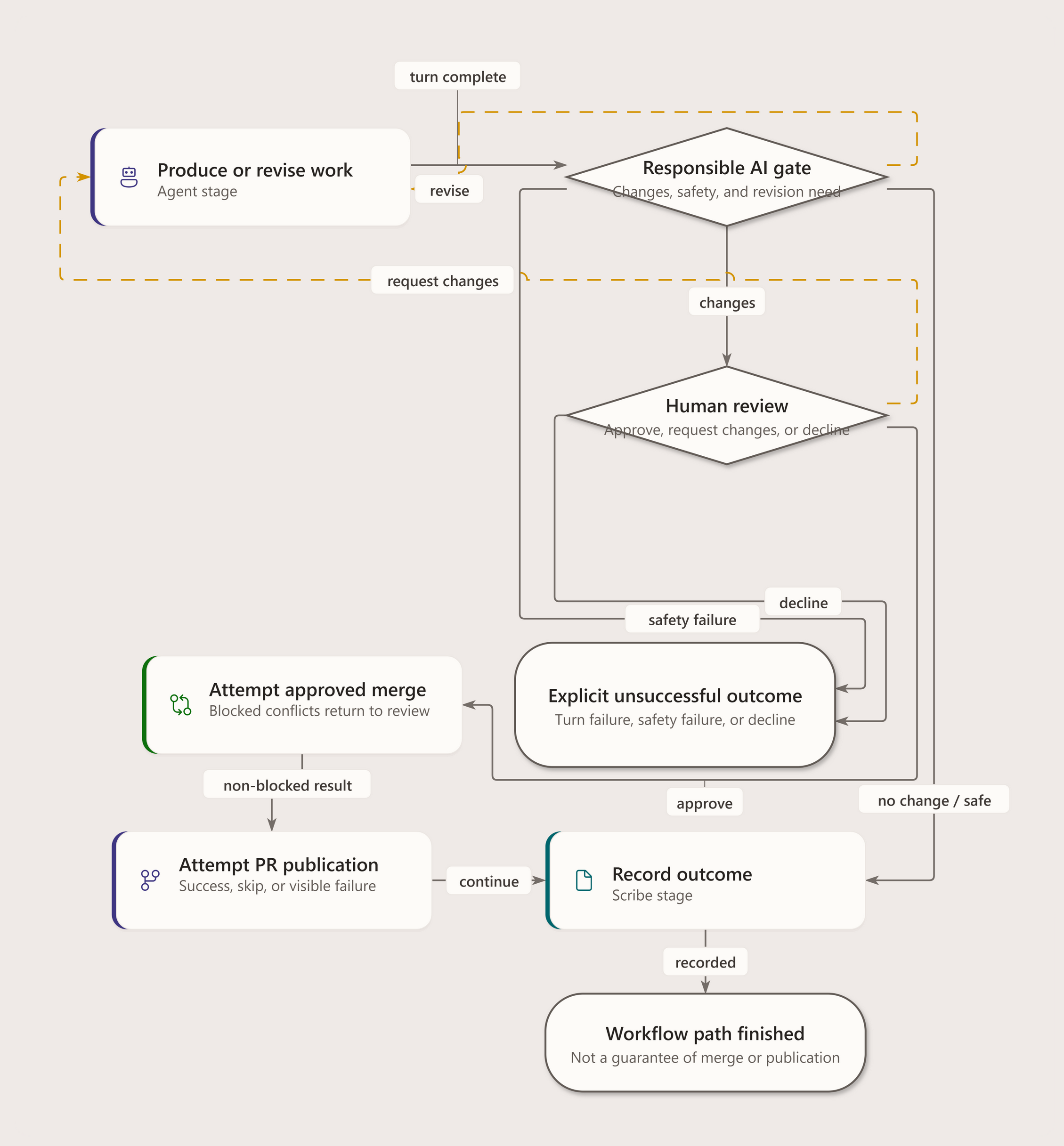
Review edges are constrained by the runtime binder's transition contract. A software release-readiness chain can run RAI → Build & Test → peer review → human review; approval/pass advances to the next gate, request-changes/revise returns to an agent step, and decline routes to a terminal. Unsupported edge conditions are rejected before the draft is saved, with the failing edge and supported outgoing alternatives returned in transition_issues. An unbindable base_yaml edit is rejected before any generation model call.
If the project was created from GitHub — or your prompt includes a GitHub repository or issue URL — generation keeps that target repository in the prompt context so the draft acts against the intended repo.
The generated workflow is preview-first: Agentweaver opens the YAML draft in the editor and does not write it to .agentweaver/workflows/ until you save. If validation fails after the server's correction pass, the API returns an error instead of saving a broken workflow.
The built-in PM Discovery workflow uses this conservative topology for two ordered independent branches: customer-signal research writes customer-signals.md, technical-feasibility research writes technical-feasibility.md, and both join before synthesis and review.
Workflows affect team composition
A workflow references specific roles by name. If your project's cast doesn't include a role referenced in the workflow, the run will fail validation before it starts. Make sure the workflow's required roles match the agents in your team.
Workflow lifecycle in a run
When a run executes against a workflow:
- The workflow is resolved — built-in or project-local
- Workflow roles and stages are bound to runtime execution
- Separately, the coordinator decomposes the outcome into WorkPlan tasks and assigns child agents
- Child work follows task dependencies and hands off assemble-ready output
- Collective gates evaluate the assembled output according to the selected workflow
Workflow binding is not a one-step-to-one-child mapping. The run topology shows the coordinator's task graph; a workflow viewer shows authored stages and their dependencies.
Blueprints bundle workflows
When you save a team as a Blueprint, the Blueprint bundles the team's roster, one or more workflows (with a designated default), and the project's review and sandbox policies. Instantiating the Blueprint into a new project automatically materializes the workflow files into the new project's .agentweaver/workflows/ directory.
Visual model
Default workflow